

Create New Broadcast Agent
Set up your broadcast agent in minutes using the guided agent creation modal.
Agent Creation Modal
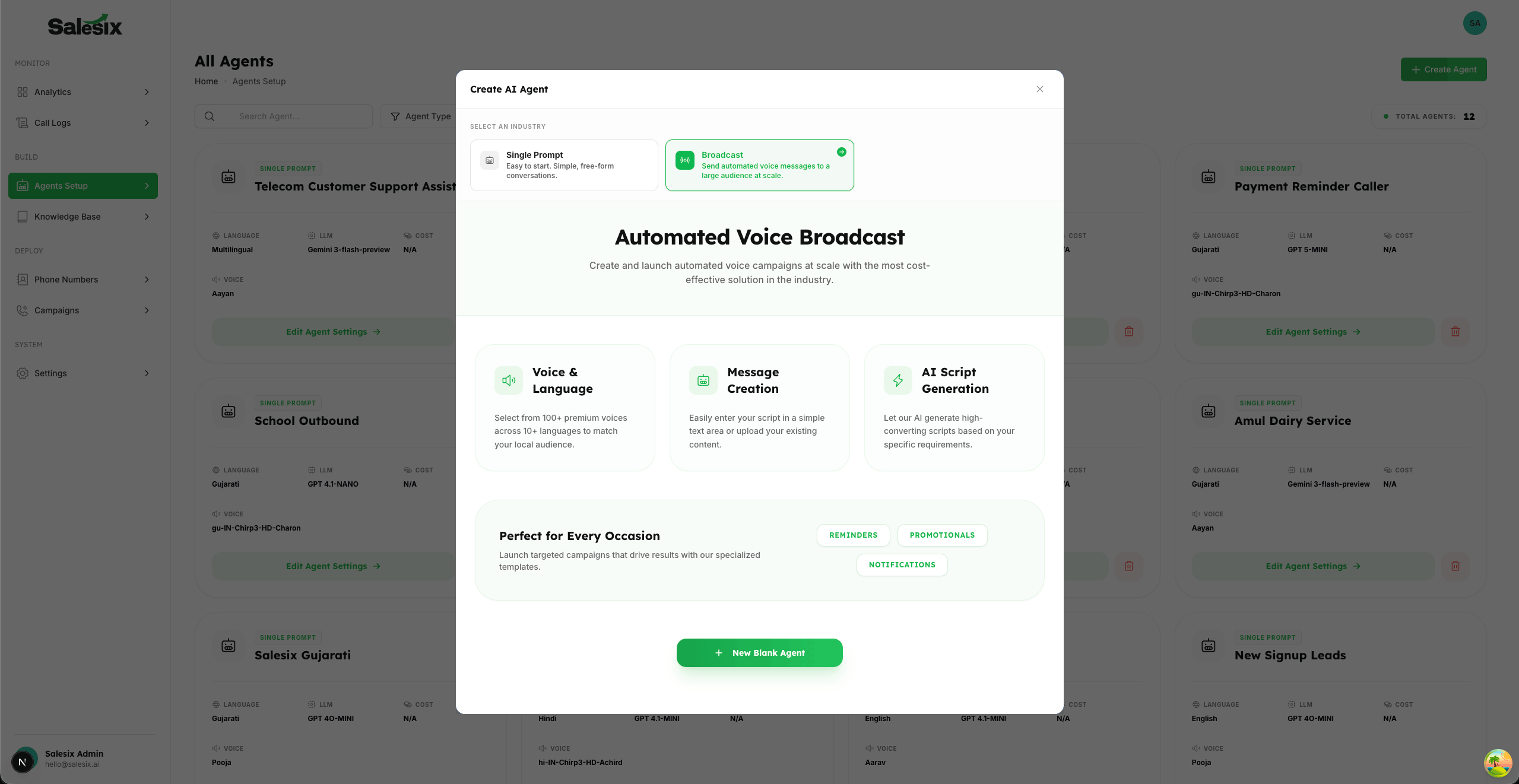
- 1
Navigate to the Broadcast Studio section from the sidebar.
- 2
Click on the Create New Agent button to open the Agent Creation Modal.
- 3
In the Agent Creation Modal, make sure to select the Broadcast type to ensure the agent is configured for mass voice outreach.
- 4
Click on New Blank Agent to proceed with fresh configuration tailored to your specific campaign needs.
Configure Broadcast Voice Message
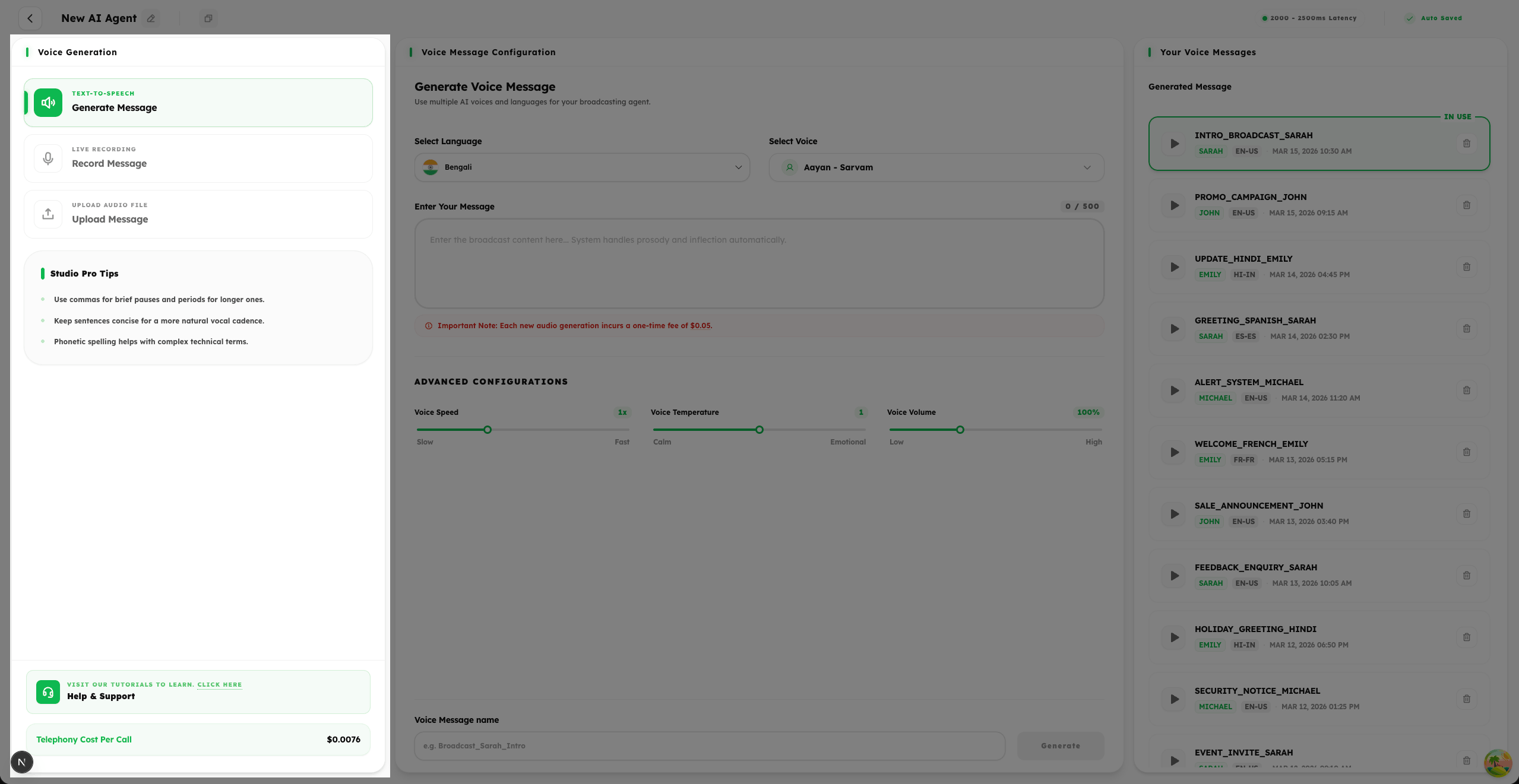
- 1
After creating the agent, the next critical step is to choose how you want to generate the voice message for your broadcast.
- 2
You will be presented with three powerful voice generation modes: Text-to-Speech (TTS), Record Voice Message, and Upload Audio File.
- 3
Select the mode that best fits your workflow — whether you prefer the automation of AI-generated speech, the personal touch of a recorded message, or uploading a professionally produced audio file.
Summary
Creating a Broadcast Agent is your first step toward large-scale voice messaging. The creation process is streamlined through a dedicated modal that allows you to choose the broadcast type and configure your agent from scratch.