

Recording Voice Mode
Record your own professional voice message directly within the browser.
Step 1: Start Recording Your Voice
- 1
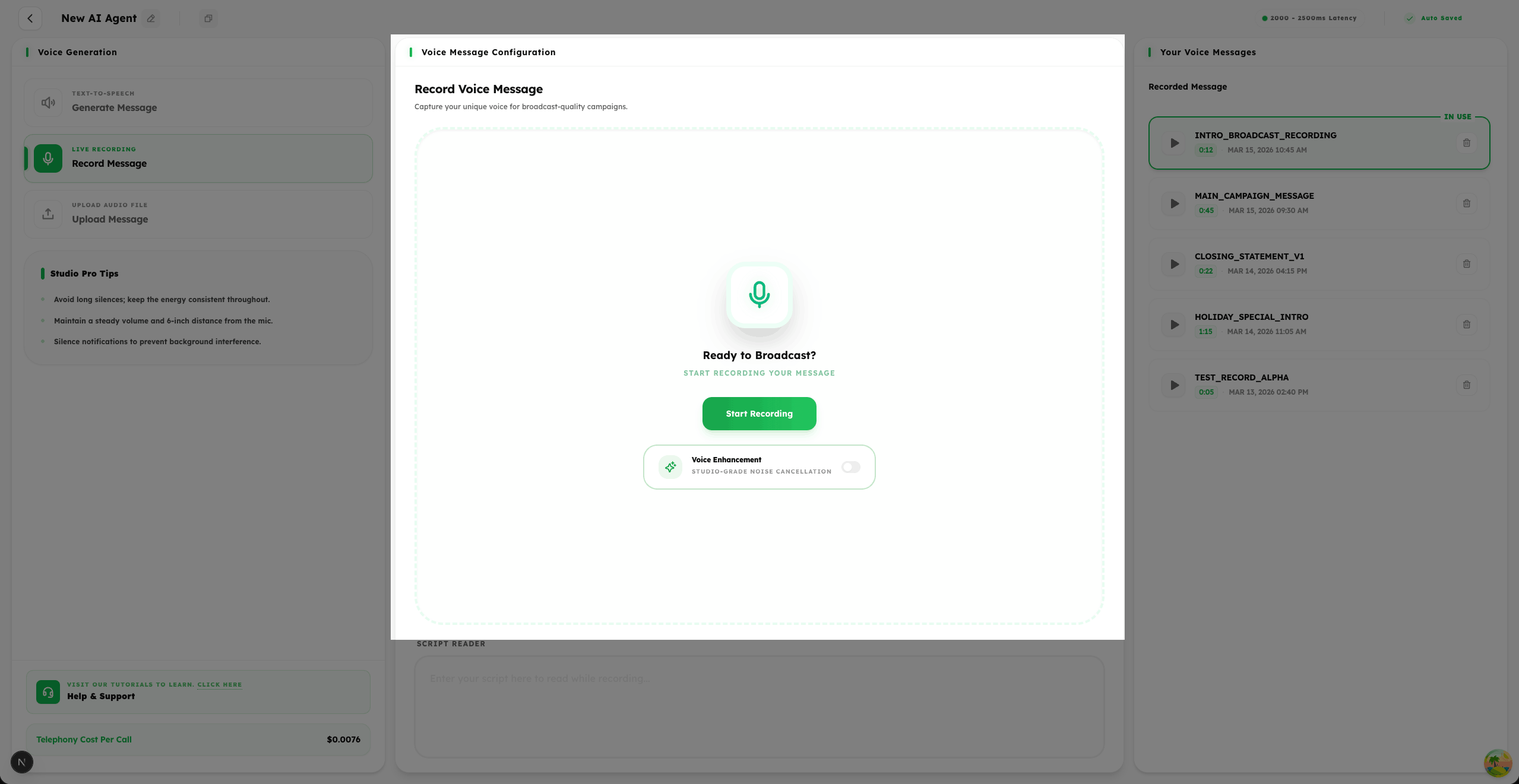
Click on the Start Recording button to begin capturing your voice message directly within your browser — no external software required.
- 2
For a cleaner, more professional audio output, toggle on ANC (Active Noise Cancellation) to minimize background noise during your recording.
- 3
Ensure you are in a quiet environment and your microphone is properly configured before starting for the best audio quality.
Step 2: Save Your Recorded Voice Message
- 1
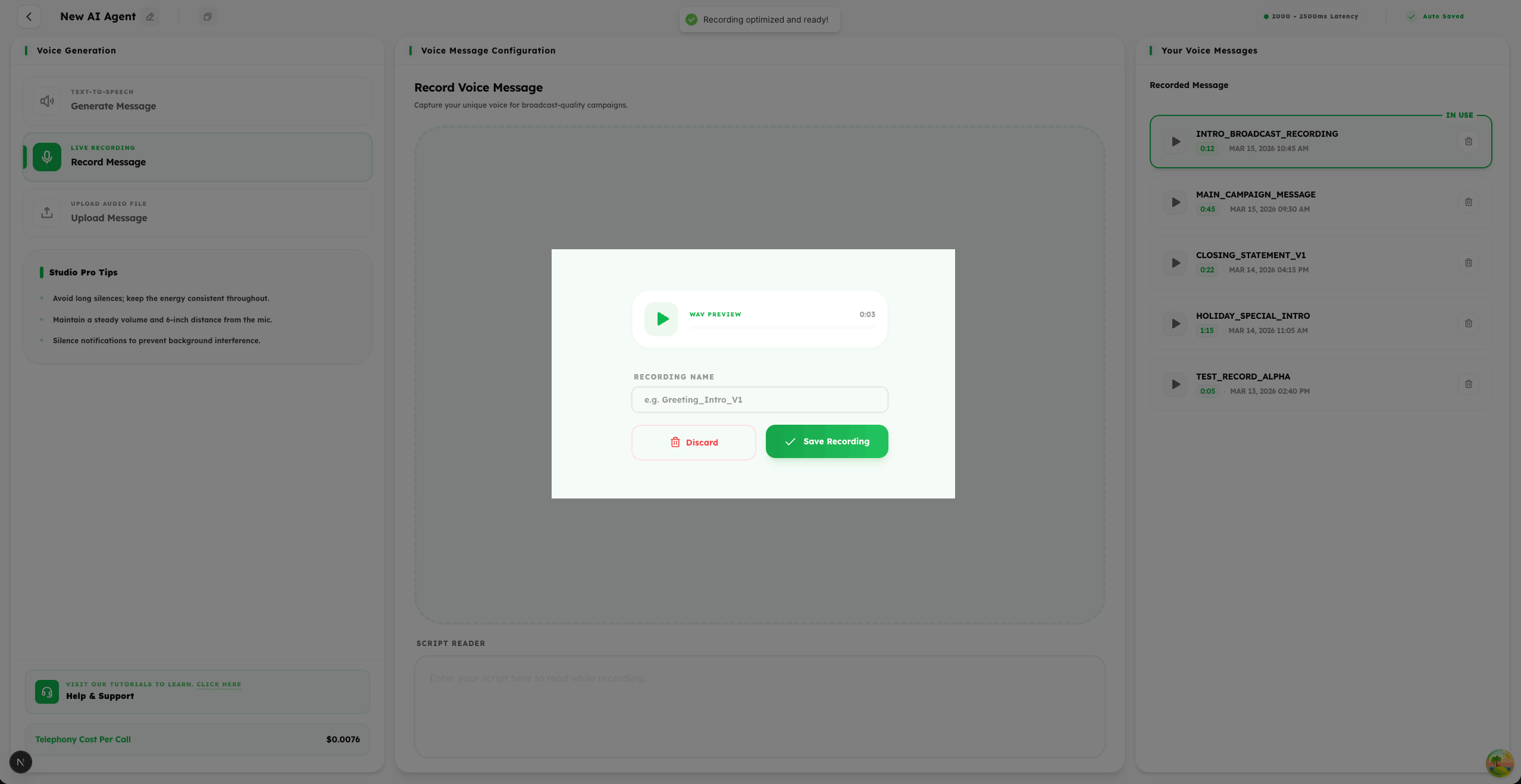
Once your recording is complete, give your voice message a clear and descriptive name to make it easy to identify later.
- 2
Use the Play button to preview your recording and ensure it sounds exactly as intended before committing.
- 3
Click Save to store the voice message in your broadcast library, making it immediately available for selection in your campaigns.
Step 3: Use the Script Reader
- 1
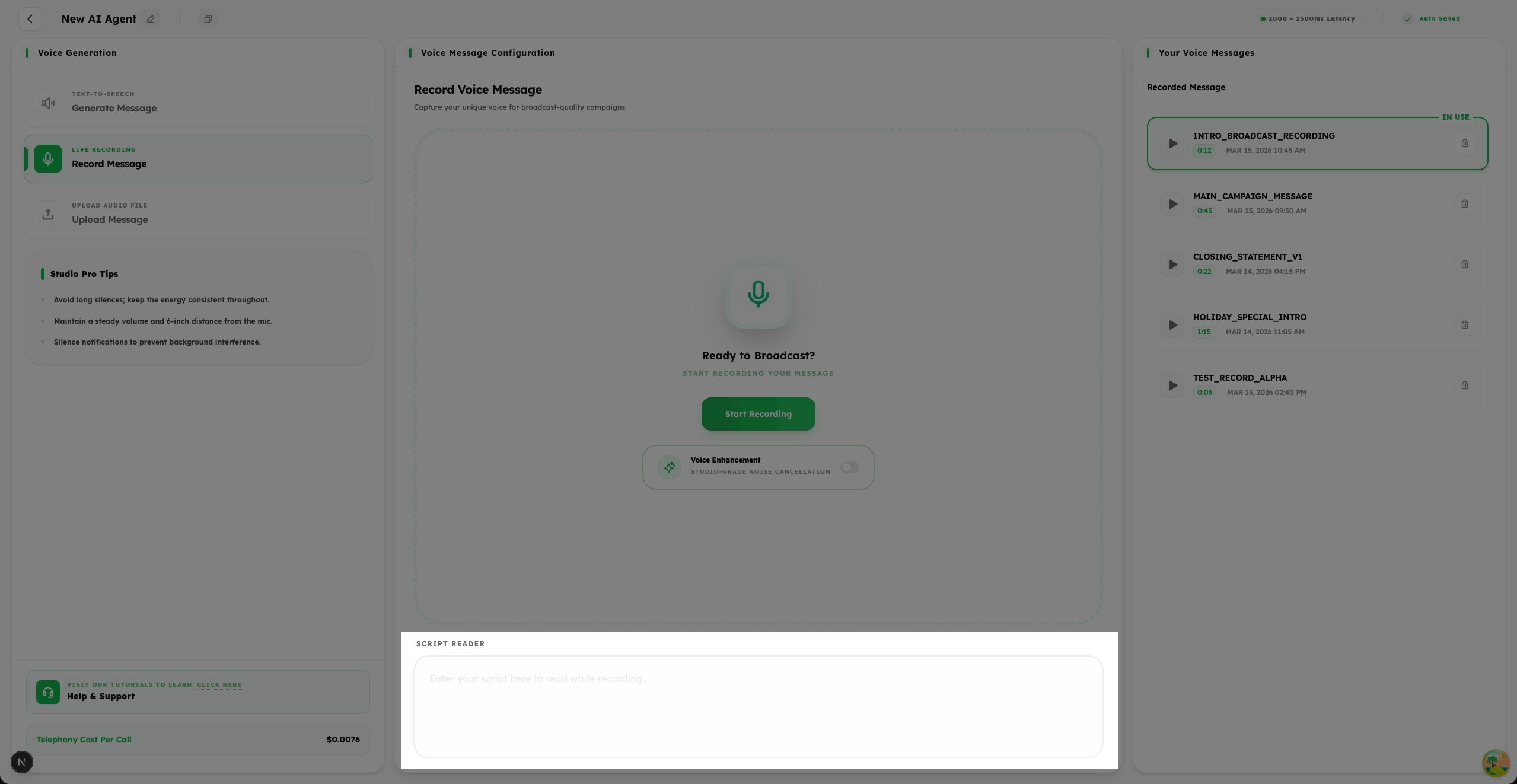
The built-in Script Reader is a valuable tool that allows you to type or paste your script and read it comfortably while recording your voice.
- 2
This feature helps you stay on message, maintain a natural pace, and avoid long pauses or mistakes during recording.
- 3
Note: The Script Reader is a local text area for your convenience only — its content is not saved or stored by the platform.
Step 4: Manage Your Recorded Messages
- 1
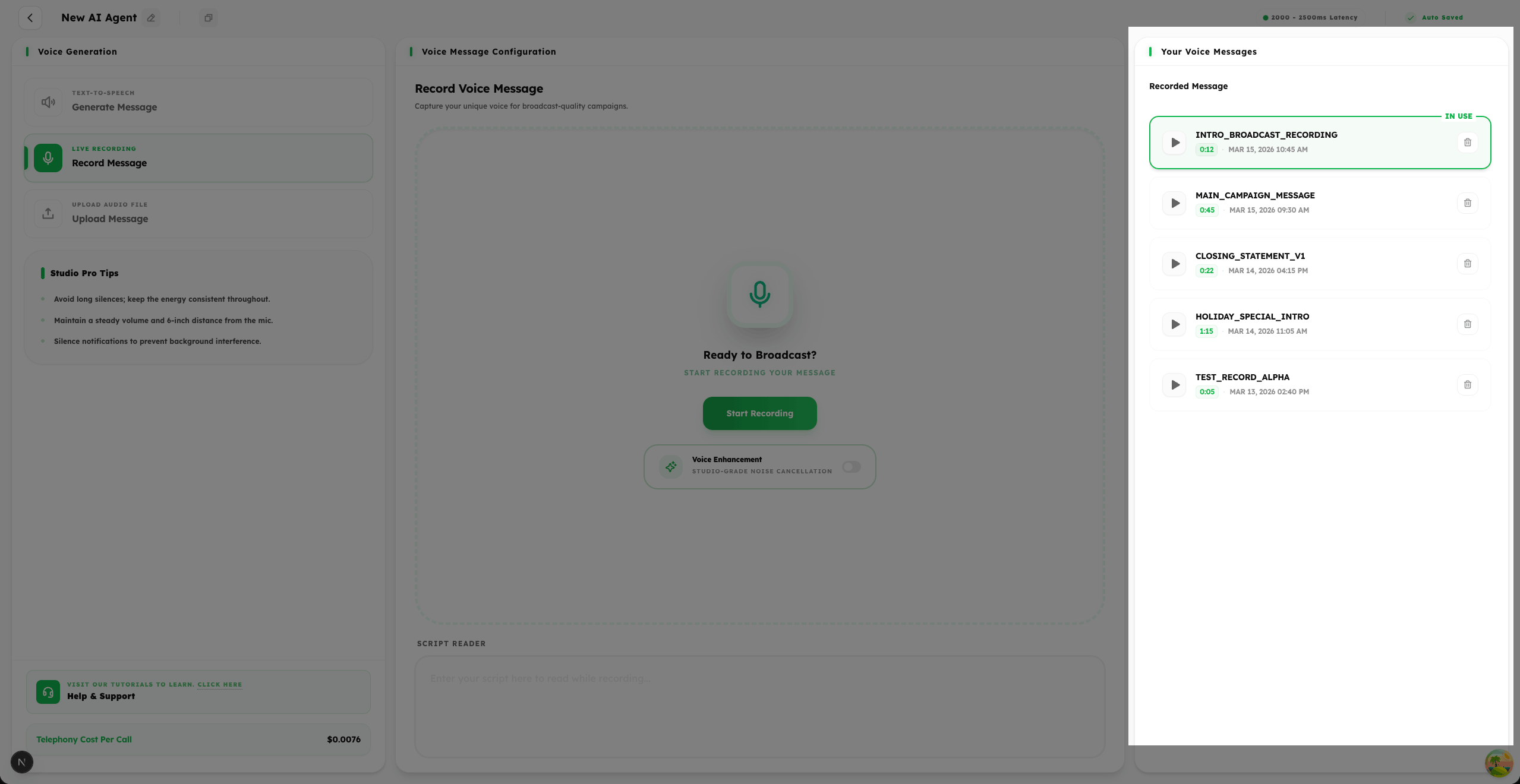
All your Voice Recordings are saved and displayed in a convenient list view for easy management.
- 2
You can Select any recorded message to use it as the voice for your current broadcast campaign.
- 3
Use the Play button to listen to a preview of any recording before making your final selection.
- 4
Use the Delete option to remove any outdated or unwanted recordings to keep your library clean and organized.
Summary
The Recording mode lets you bring a personal, human touch to your broadcasts. Record directly through your browser, use the built-in Script Reader to stay on track, and manage all your recordings from one convenient list.