

Text-to-Speech Voice Mode
Generate professional AI voice messages from text in 50+ languages using 1000+ AI voices.
Step 1: Select Your Broadcast Language
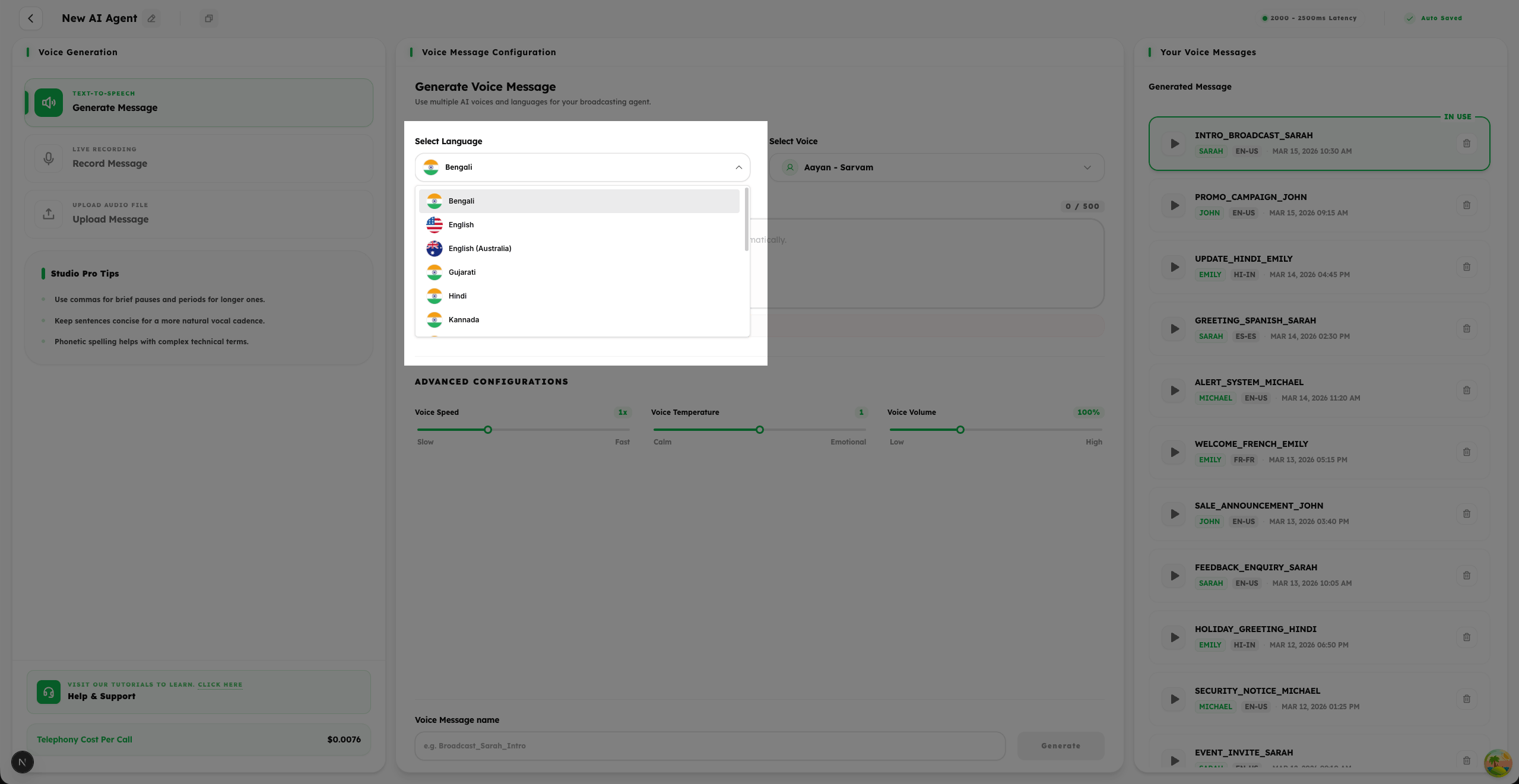
- 1
The first step is to select the language in which you want your AI voice message to be generated.
- 2
Choose from 50+ supported languages to connect with your contact data in a local and relatable way.
- 3
Selecting the correct language ensures your broadcast message resonates authentically with your intended audience.
Step 2: Choose Your AI Voice
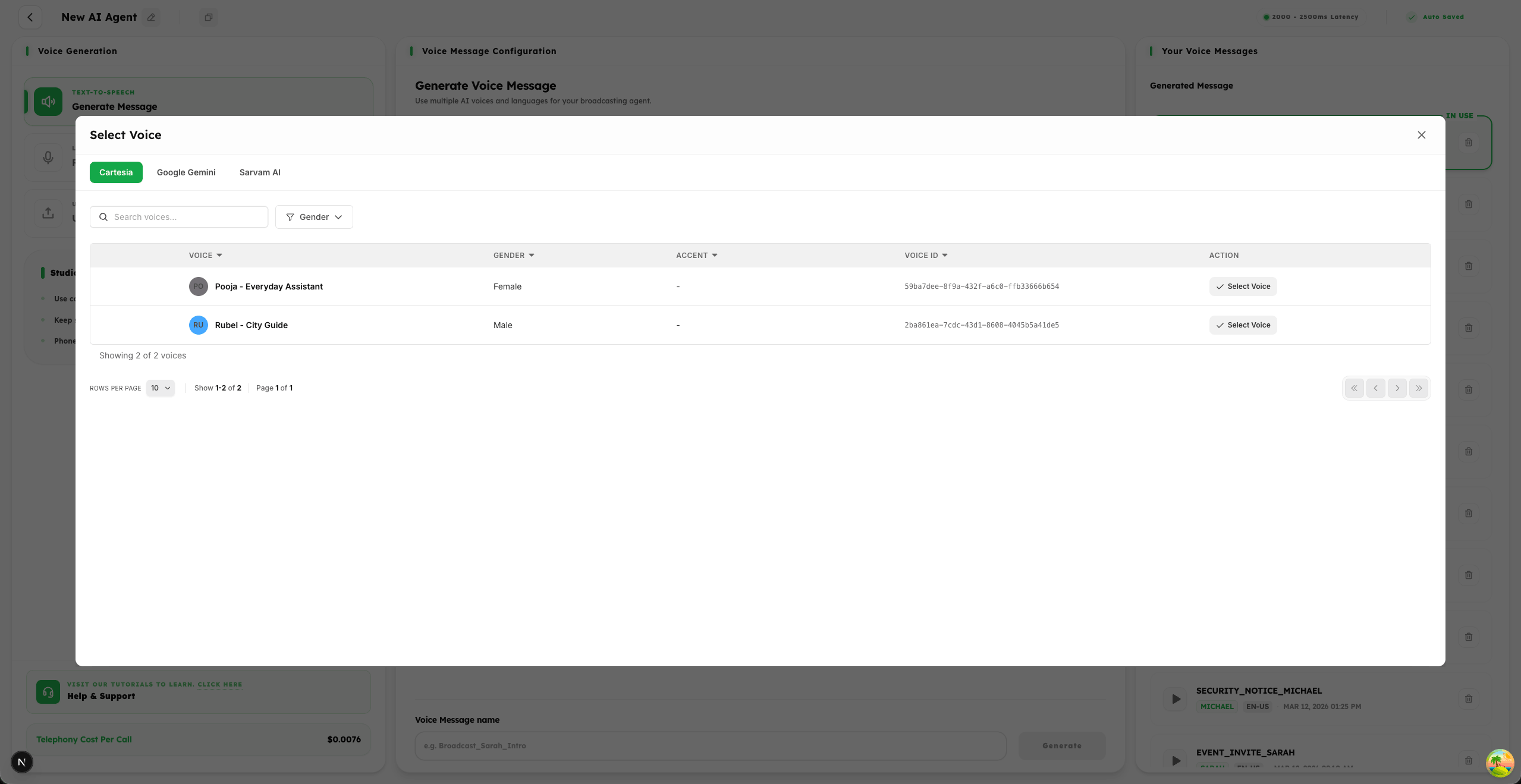
- 1
Select from 1000+ AI Voices sourced from multiple AI Voice Providers based on your brand personality and campaign needs.
- 2
Preview different voices and accents directly within the studio to ensure the Vocal Identity perfectly represents your business.
- 3
Choosing the right voice ensures your message is delivered with the tone and authority that your audience expects.
Step 3: Enter Your Broadcast Message
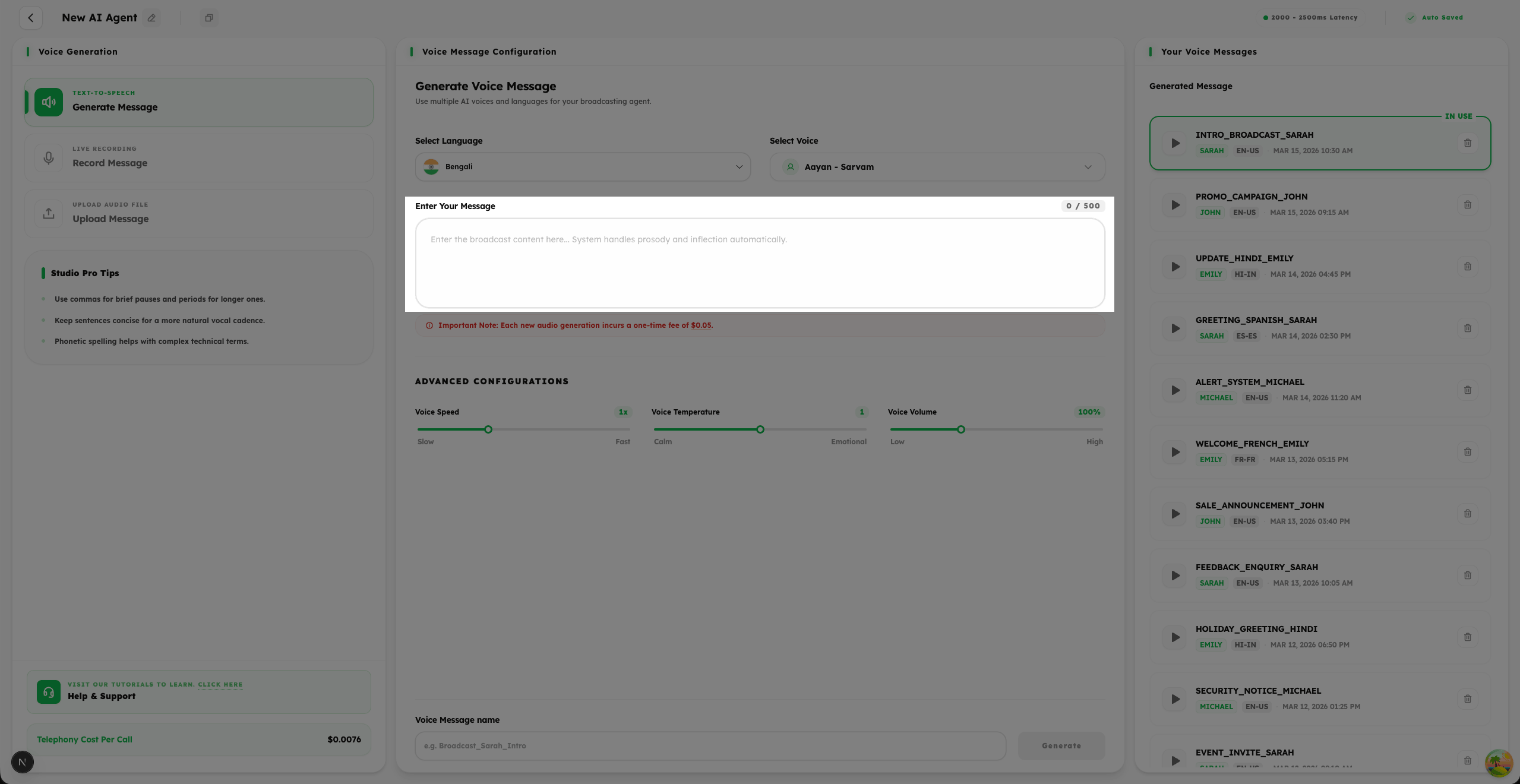
- 1
In the message input area, type the complete script that you want to broadcast to your contact list.
- 2
Write a clear, concise, and engaging message — this is what your contacts will hear during the call.
- 3
Double-check your text for accuracy and tone before proceeding to audio generation.
Step 4: Advanced Voice Configuration
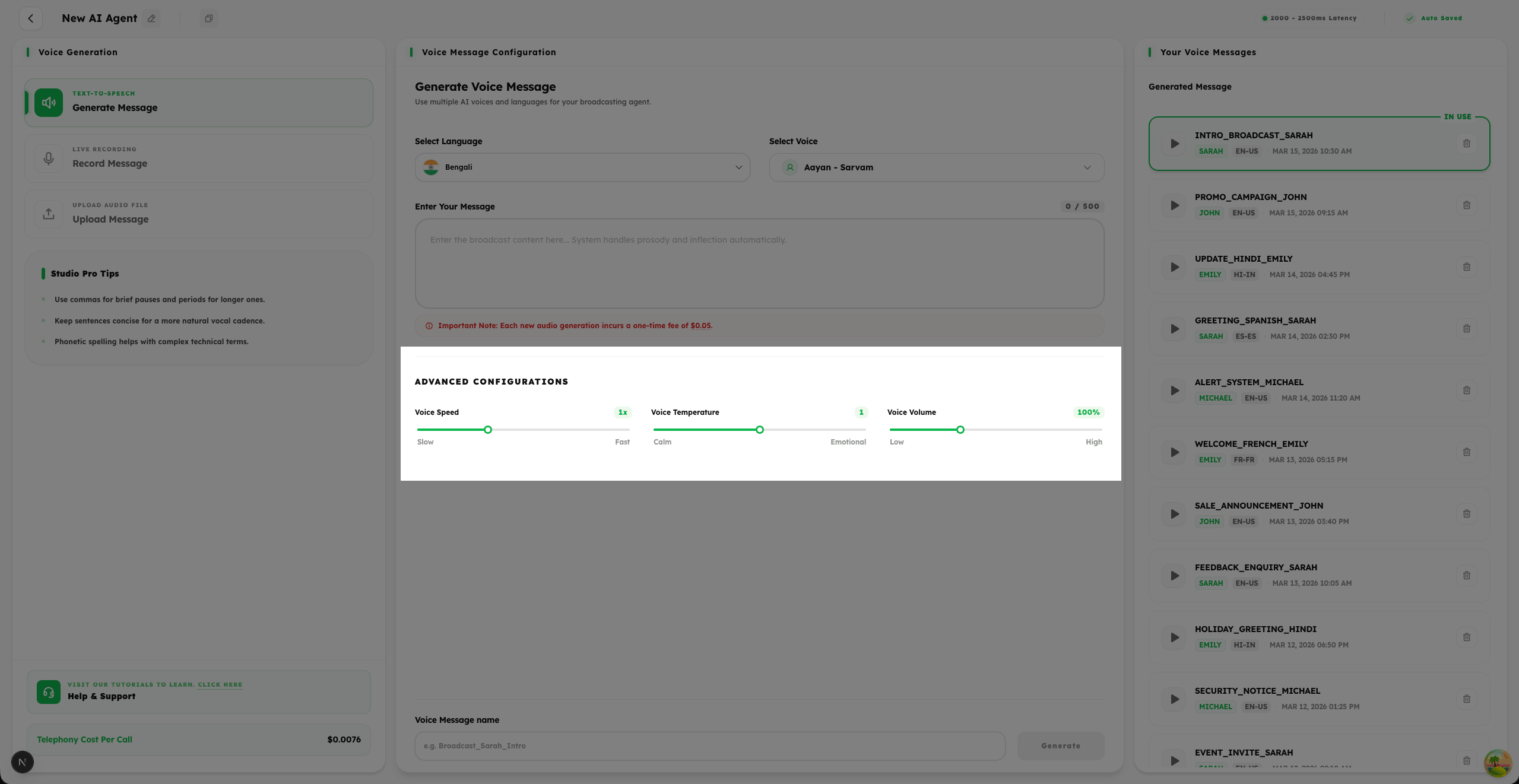
- 1
Expand the Advanced Configurations panel to fine-tune the audio output of your broadcast message.
- 2
Configure Voice Speed (Slow to Fast) to ensure the message is delivered at a pace that is easy to understand.
- 3
Configure Voice Temperature (Calm to Emotional) to adjust the vocal expressiveness to suit your campaign's tone.
- 4
Configure Voice Volume (Low to High) to control the loudness of the AI-generated voice output.
Step 5: Name Your Voice Message & Generate
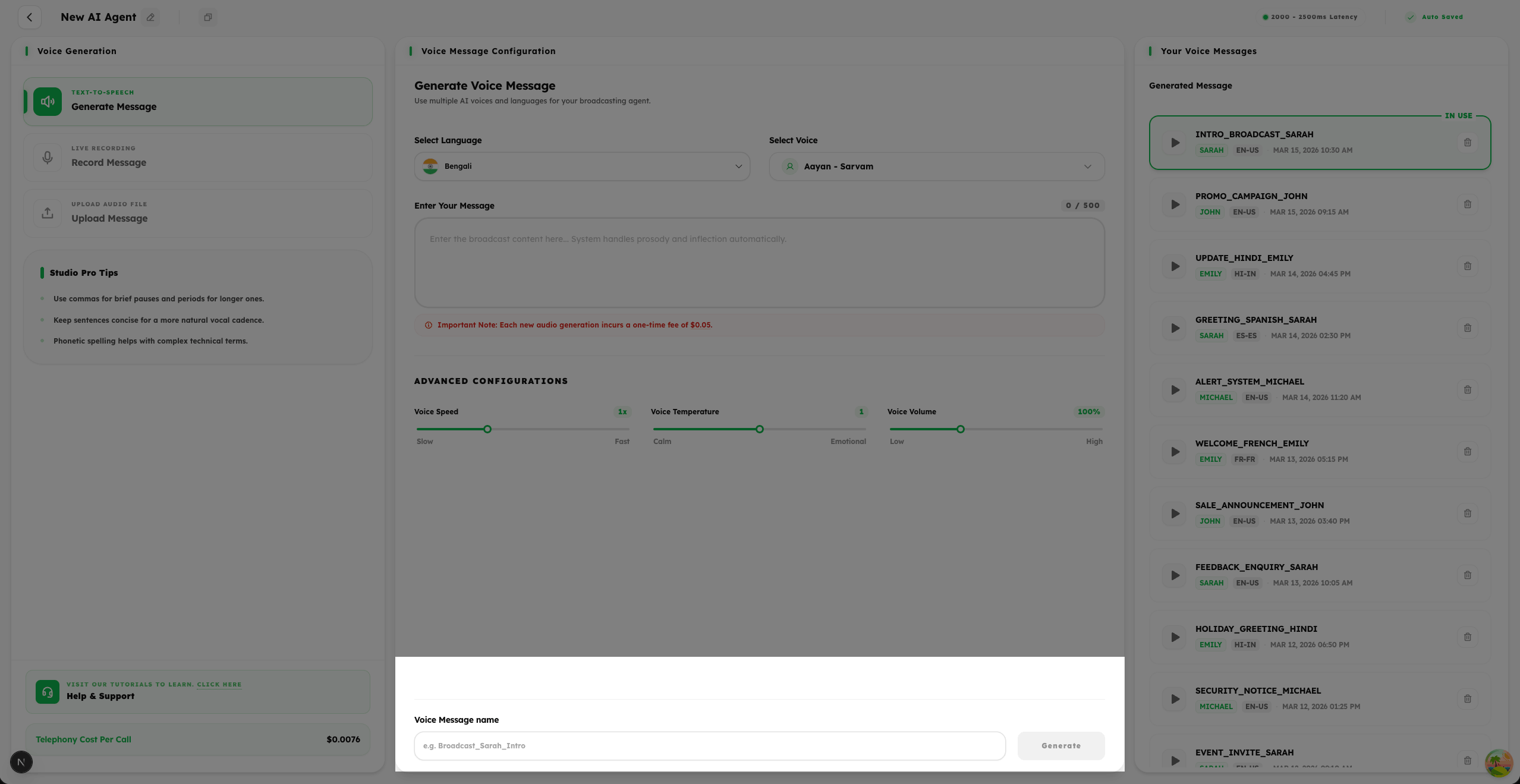
- 1
Give your voice message a descriptive name to help you identify it easily from your generation list later.
- 2
Once you are satisfied with all settings, click on Generate Voice to create your broadcast audio file.
- 3
Important: Each generation will incur the minimum credit charge displayed on screen. This is a one-time generation cost only. Once the voice is generated, it will be stored and reused for broadcasting you will only be charged standard telephony rates per call from that point forward.
Step 6: Manage Your Generated Messages
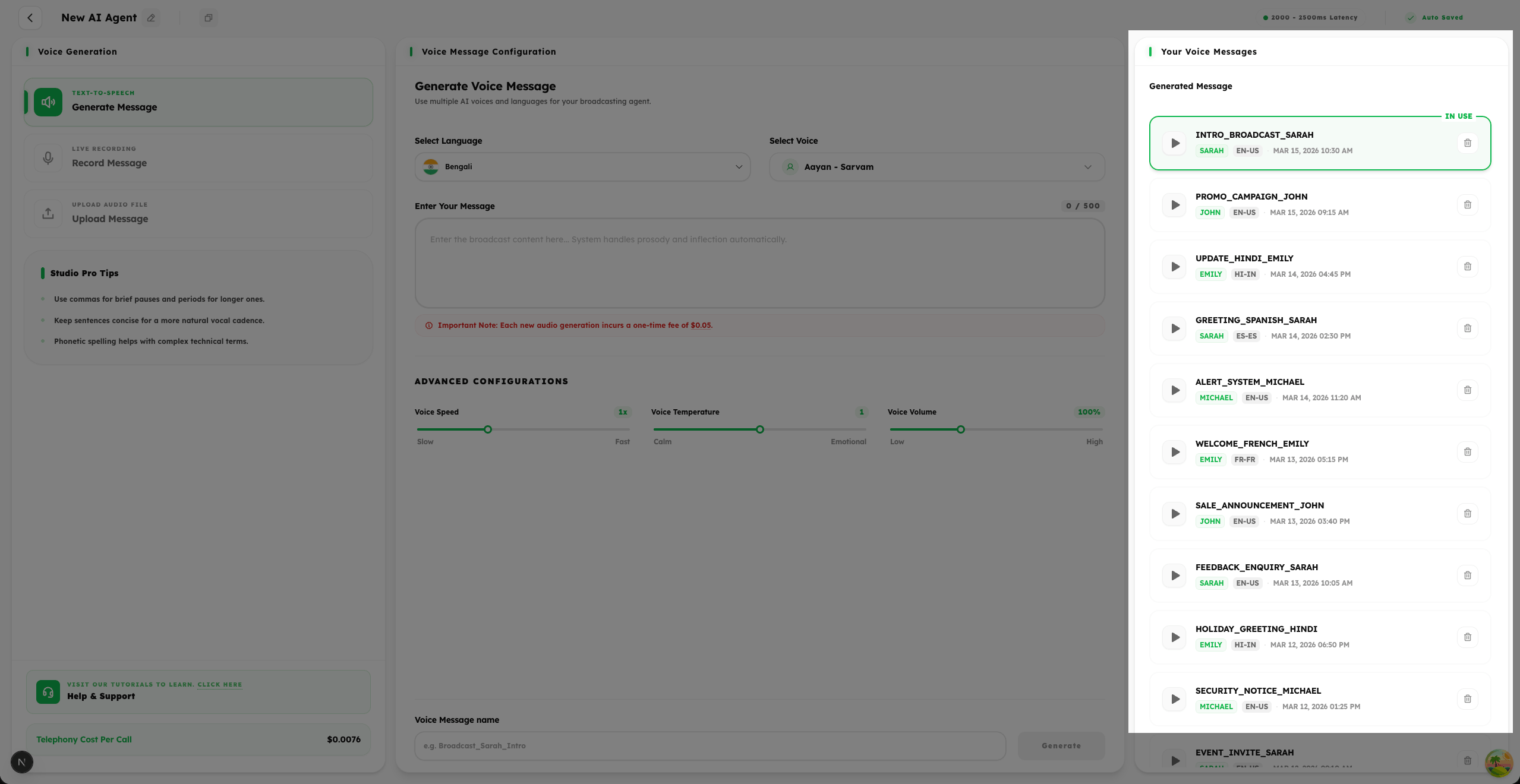
- 1
All your Text-to-Speech generations are saved and displayed in a convenient list view for easy management.
- 2
You can Select any generated message to use it as the voice for your current broadcast campaign.
- 3
Use the Play button to listen to a preview of any generated audio before making your final selection.
- 4
Use the Delete option to remove any outdated or unwanted voice messages to keep your library organized.
Summary
The Text-to-Speech mode is the fastest way to create broadcast-ready voice messages. Simply type your script, choose your language and voice, and let Salesix AI handle the professional audio generation for you.