

Uploading Audio File Mode
Upload pre-recorded, professionally produced audio files for high-fidelity broadcasting.
Step 1: Upload Your Audio File
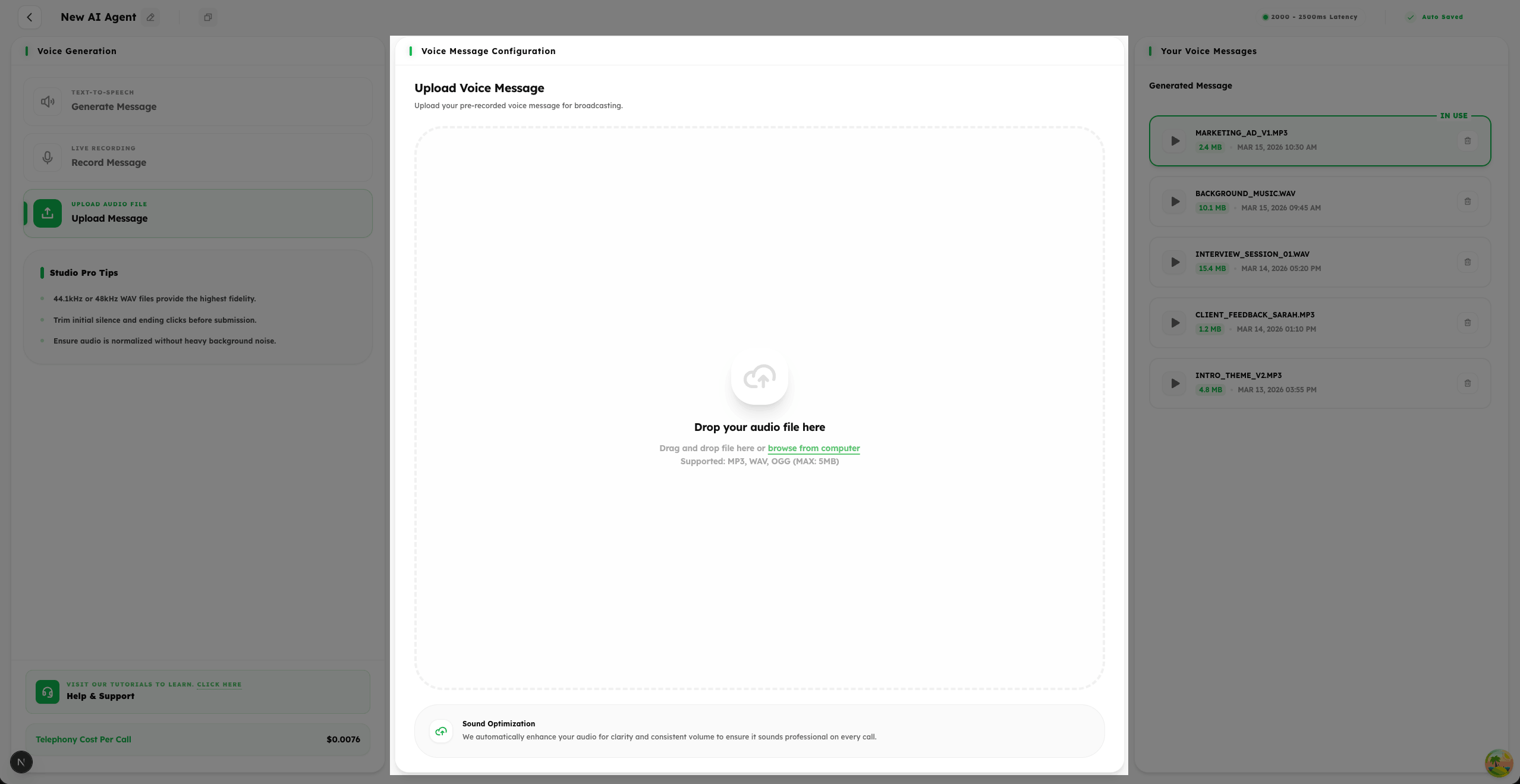
- 1
Click the upload area to browse and select your pre-recorded audio file from your device.
- 2
We support the following formats: .mp3, .wav, and .ogg ensure your file is in one of these formats before uploading.
- 3
Using a high-quality audio file ensures the best possible audio clarity for your broadcast recipients.
Step 2: Review & Confirm Your Upload
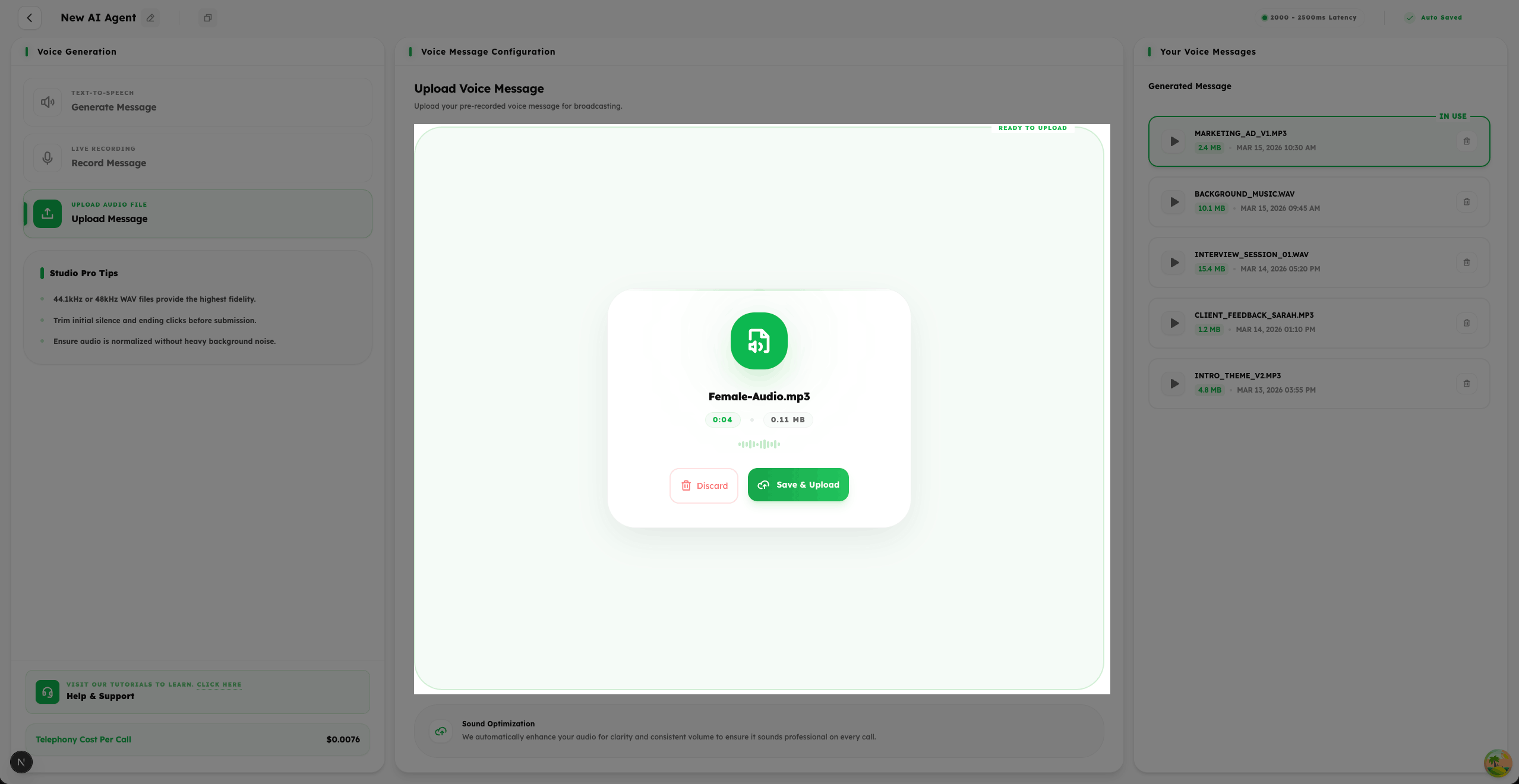
- 1
After uploading, you will be presented with a preview screen to review your audio file before it is saved.
- 2
Use the Play button to listen to the uploaded audio and verify it is the correct file and meets your broadcast quality standards.
- 3
Click Confirm to save the audio to your library, or Discard if you need to re-upload a different or corrected file.
Step 3: Manage Your Uploaded Audio Files
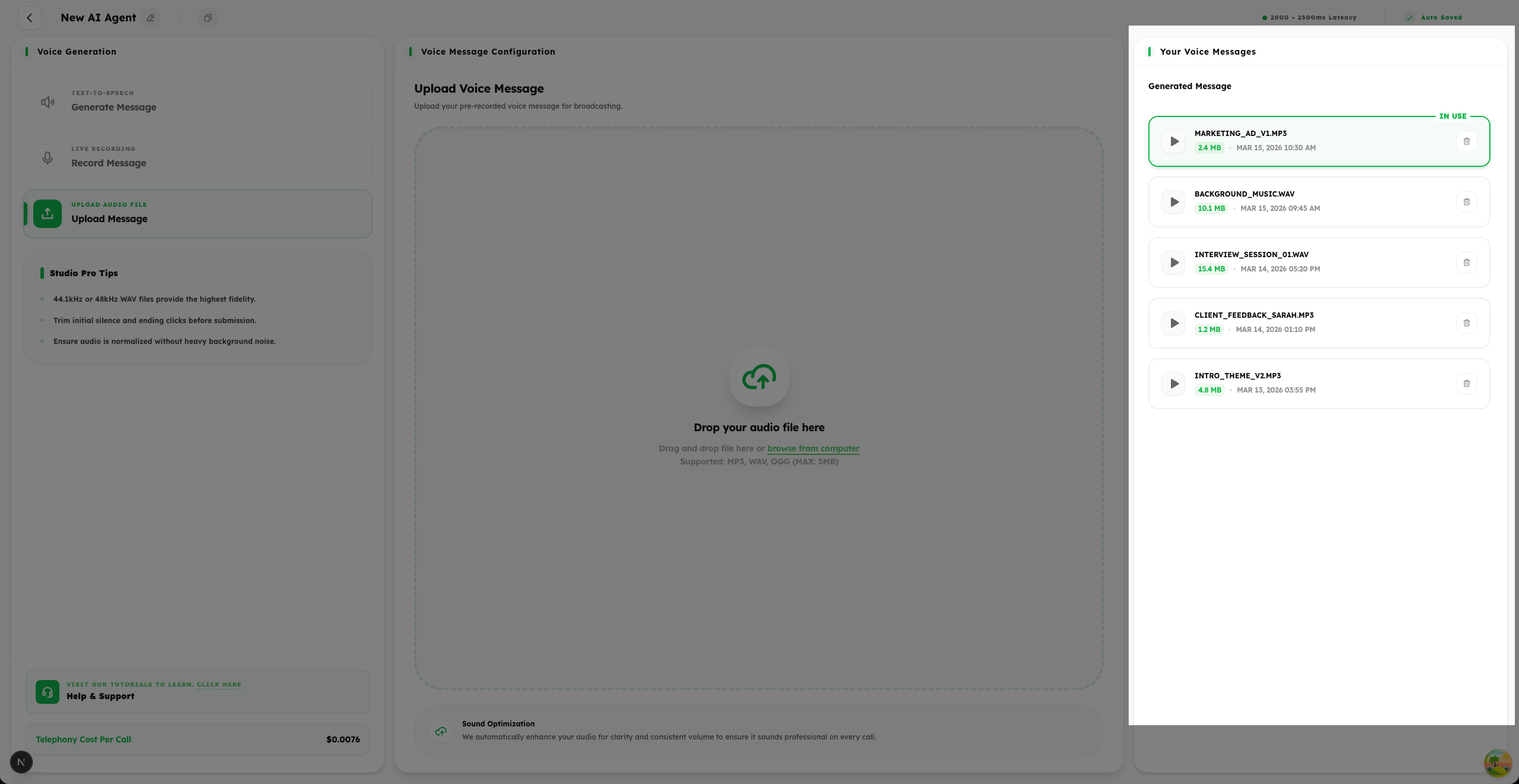
- 1
All your successfully uploaded audio files are saved and displayed in a convenient list view for easy management.
- 2
You can Select any uploaded audio to use it as the voice for your current broadcast campaign.
- 3
Use the Play button to listen to a preview of any audio before making your final selection.
- 4
Use the Delete option to remove any outdated or unwanted audio files to keep your library clean and organized.
Summary
Use the Upload mode to leverage studio-produced or previously recorded audio files for the highest broadcast quality. Simply upload your file, confirm it, and it's ready to use across all your campaigns.